Assign work to your class in 5 steps
Two minutes, no setup beyond the class you already made. Print this page or keep it open on a second tab.
- 1
Open Classrooms and pick your class
Classrooms is in the top bar on every page. Choose the class you want to give work to. A brand-new class shows a Get started in 10 minutes panel at the top.
- 2
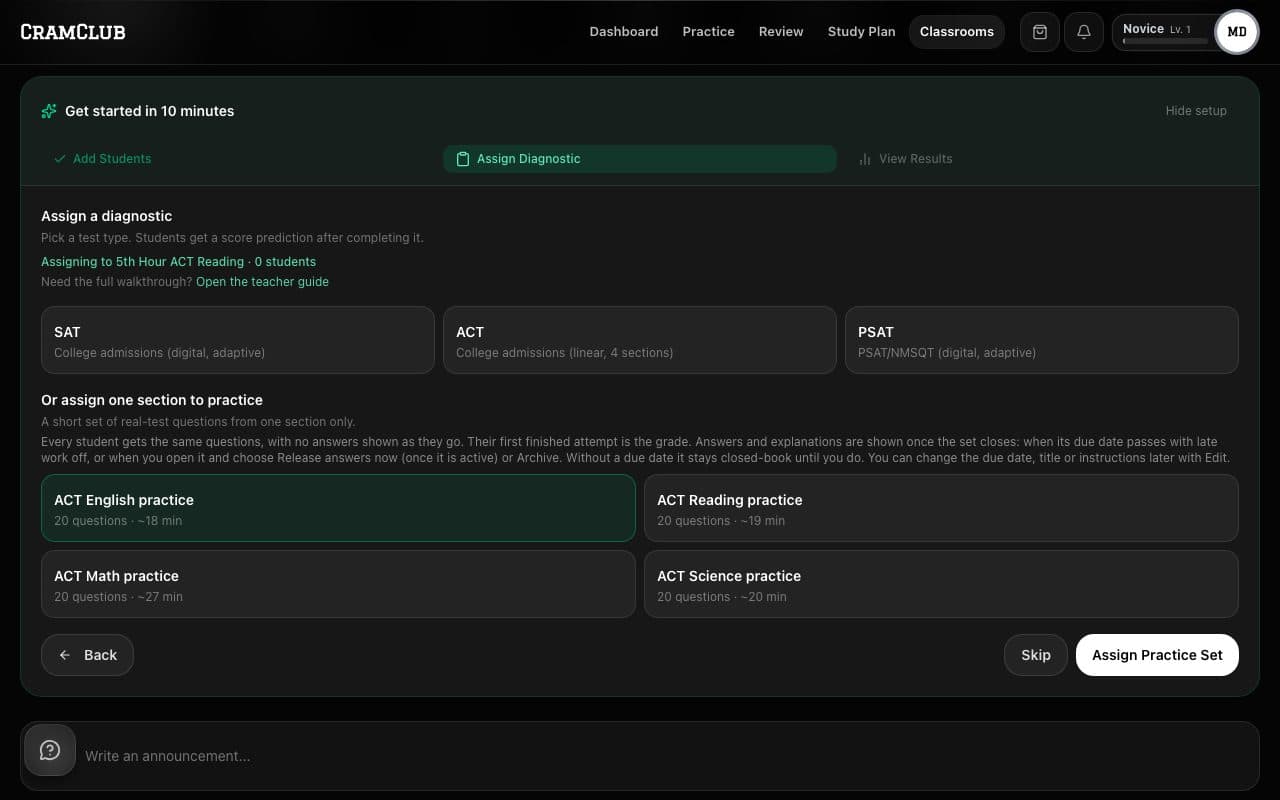
Pick the test in the Assign Diagnostic step
Press Skip for now on the Add Students step if your students already have the code, then choose ACT, SAT or PSAT — or, for one section only, a section practice set such as ACT English practice or SAT Math practice (20 real-test questions, about 14 to 32 minutes depending on the section; the button then reads Assign Practice Set). Above the button you will see Assigning to [your class] · [N] students, so you know exactly who gets it. Plan for up to 40 minutes of class time for a diagnostic; students who don’t finish can pick up where they left off.
- 3
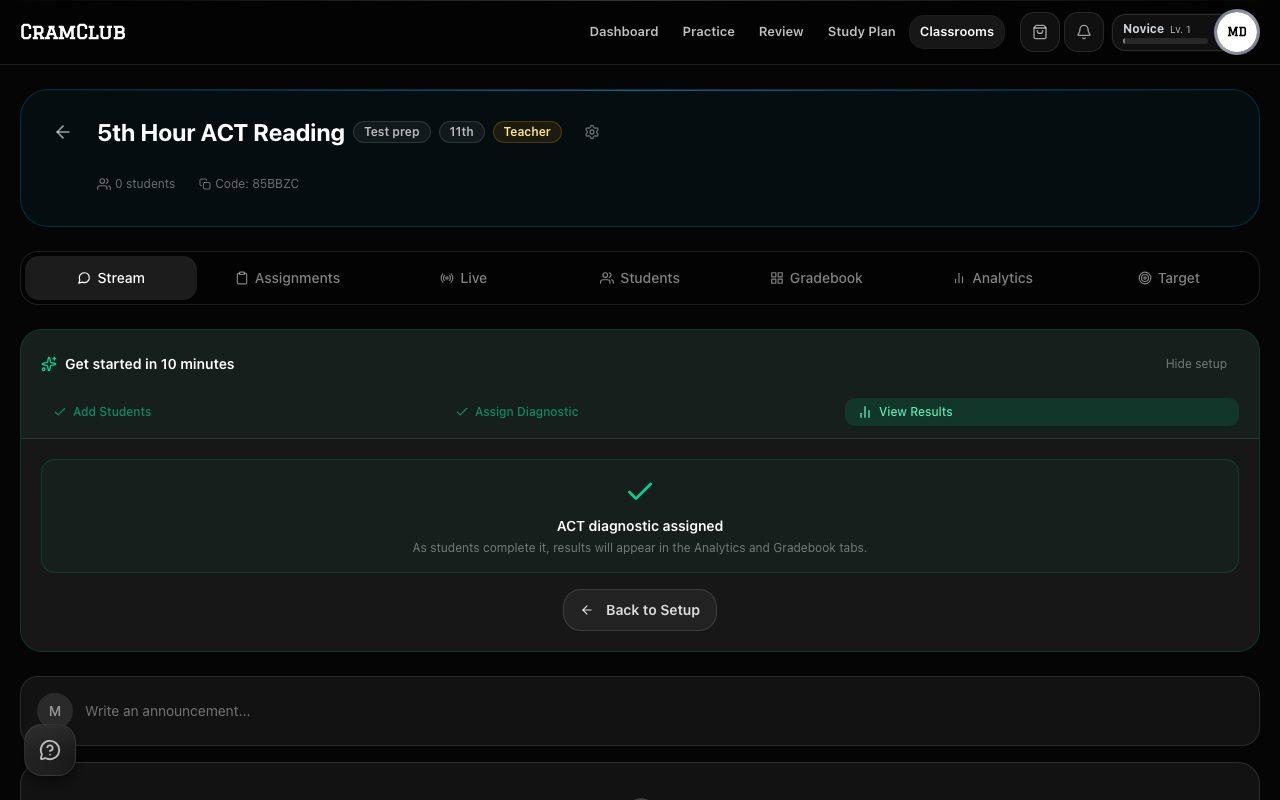
Press Assign Diagnostic
The whole class gets it at once. The green confirmation that follows means it is live for every student on your roster — students who join later get it automatically.
- 4
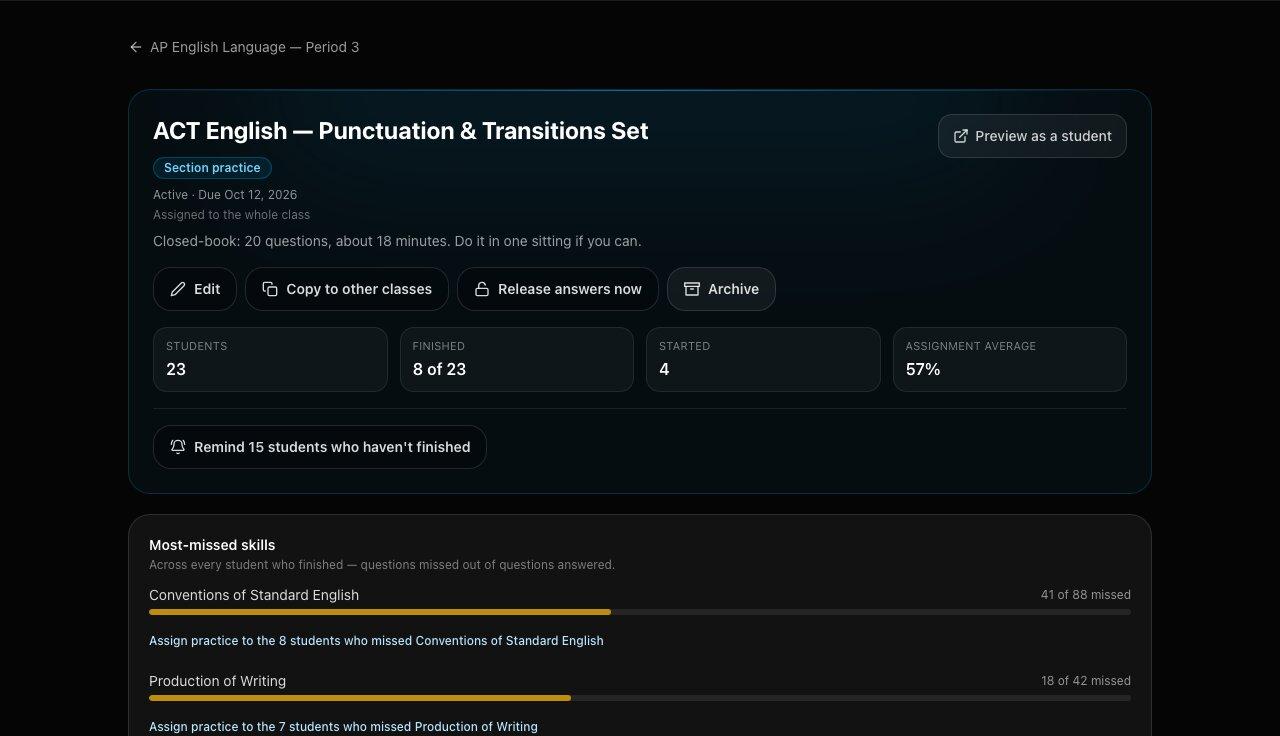
Open the Assignments tab to see who has finished
Click the assignment’s title to open your view: at the top, how many students have finished and started and the assignment average; further down, each student’s status and score. The smaller Preview as a student link under it shows the assignment the way your students see it, with sample questions you can try — nothing you answer there is saved, so it never counts as your own practice.
- 5
Anything else: Create Assignment
For a quiz, a full-length practice test or flashcards, press Create Assignment on the Assignments tab. The New Assignment form opens: choose the content, set a due date, and press Create Assignment. For a full-length practice test, choose the Test tile and pick one under Full-length practice tests — each is marked free for every student or for students with a seat. Scores land in the Gradebook tab, and Export CSV gives you a file for your school gradebook.
Change it later: due dates, answers and archiving
- Open the assignment (click its title on the Assignments tab) and press Edit to change the title, the instructions, the due date (in your own time zone — clear it for no due date) or whether late work is accepted. The same Edit button is on each assignment in the list.
- A section practice set is closed-book: students see no answers until it closes. It closes when its due date passes with late work off — or straight away when you press Release answers now, which keeps it on the class page and in the Gradebook. Students who haven’t turned it in by then can no longer hand it in for a grade.
- Archive takes an assignment off your students’ class page and out of the Gradebook and CSV export (scores are kept) — except that a practice set stays, closed, for students who turned it in, so they can review their answers once it closes. Archiving doesn’t release a practice set’s answers — use Release answers now for that.
- Once a set’s answers are out it can’t be reopened with the same questions — that would hand the class the key. Press Assign again for a copy with a fresh set of questions; you only need to pick a new due date.
- A quiz your class sat closed-book works the same way once it closes: after students have seen its answers it can’t be reopened, and it can’t be assigned to those students again — pick a different quiz instead.
More you can do
- Give work to some students only. In the assignment form, under Who is this for?, choose Selected students and tick the students. Nobody else sees it.
- Schedule it. In the New Assignment form, under When should students get it?, choose Schedule and set Publish at; the button then reads Schedule assignment. It goes live on its own, and your class is notified then. To schedule a draft you already saved, open it, press Edit, and set Publish automatically at.
- Nudge the stragglers. Remind students who haven't finished on any published assignment, then confirming, sends a reminder email to the students who haven’t finished, at most once a day each — and the panel then tells you what was sent and what wasn’t. Students who haven’t finished are also sent an email reminder in the day before the deadline.
- See what’s coming up. Calendar on your Classrooms page shows the past week and the weeks ahead — due dates and scheduled publishes across all your classes — and outlines days when work piles up.
- Set a class target. The Target tab takes one SAT, ACT, PSAT or GRE target score and tracks the scores from work you assigned against it.
- Grade it yourself. Click a cell in the Gradebook to enter a grade. A grade you enter is final and ends that student’s retakes. Reopen gives them a sitting back while the assignment is open and before the student has seen the answers — otherwise it is refused, with the reason. Beside Export CSV, the export menu also makes a Canvas import file and a numbers-only spreadsheet.
- Practice on the weakest skill. Open an SAT, ACT or PSAT section practice set and scroll to the Question breakdown. The Weakest skills card ranks the skills the class lost the most points on; Assign practice on this skill opens the form with that skill and the students who missed it already filled in. (For ACT Reading and Science, the card ranks passage types.)
- Give one student more time. On an assignment with a due date, click their cell in the Gradebook and press Extend due date. The class’s due date doesn’t move; that student’s missing marks, late rules and reminders follow their new date.
- Missing and excused work. Past-due work that wasn’t turned in shows as missing. Click a cell and press Excuse from averages to take it out of that student’s average, or turn on Count missing work as 0 in the Gradebook to count it in.
- Print a student’s report. Click a student’s name in the Gradebook — or Printable report in the panel that opens when you click them on the roster — for one page with their assigned, turned-in and missing work, their average and the skills where they missed questions. It uses the gradebook’s own numbers.
- Add a co-teacher. In Settings, use Invite a co-teacher by email. Nothing changes until they accept from their own Classrooms page.
For your students: join your class
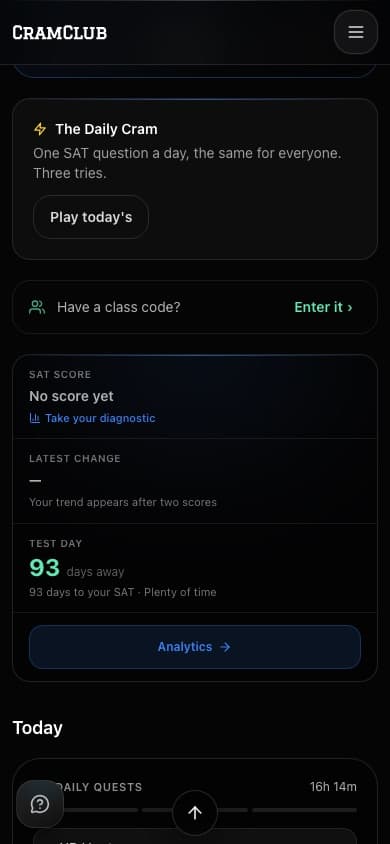
- 1. On their Dashboard, find the Have a class code? row (scroll down past the daily cards) and press Enter it.
- 2. Under Join a Class, type the code from your class page and press Join.
- 3. Or skip the typing: paste
https://cramclub.app/classrooms/join?code=ABC123(with your own code) into your LMS or a slide — it opens the join box with the code already filled in.
Questions? support@cramclub.app · Back to For Teachers